 ATTACKER-CODENINJA.GITHUB.IO
🔐 Project 2: Monitoring AWS Root Account Activity with CloudTrail + SNS — Guided by a Security Engineer
This blog is all about - Setting Up Real-Time Alerts Like a Cloud Security Engineer
📌 Introduction — The Root of All Risks
Let me tell you a quick story.
When I first created my AWS account, the most powerful key I held was the root account - the “super admin” of everything in the cloud.
But guess what? Using it is a bad idea. Like really bad.
Think of the root account like a master key to a bank vault.
If it’s used casually, or worse - compromised - your entire cloud setup is at risk.
In this project, I wanted to learn how to monitor AWS root account activity in real time - and set up alerts so that if anyone (even me) logs in with it, I’ll know immediately.
Let’s dive in!
🎯 Objective
Simulate a real-world risky action:
➡️ Log in as the root user,
➡️ Perform a sensitive action (like disabling MFA), and
➡️ Detect that activity using:
-
CloudTrail for logging
-
SNS for alerts
-
CloudWatch (EventBridge) for triggering the detection
So -> Detect and respond to sensitive activity performed by using the AWS Root Account, which should be tightly controlled and rarely used.
⚠️ Why is Root Account Usage a Security Red Flag?
By default, AWS allows you to create and manage your account with a root user, but here’s what makes it dangerous:
| 🚨 Risk | Why It’s a Problem |
|---|---|
| ✅ Full permissions | Can delete everything in AWS - no restrictions |
| ❌ MFA disabled | Easy target for attackers |
| 🤫 Hard to track | Used rarely, so any activity is suspicious |
| 🔥 No boundaries | Can override all IAM permissions |
So as a security engineer (even a beginner one), we never want to use root unless absolutely necessary.
But if someone does use it? That’s an event worth knowing immediately.
🧰 Services Used
Here’s what we’ll use to make our alert system:
| AWS Service | Purpose |
|---|---|
| CloudTrail | Logs every action taken in AWS |
| CloudWatch / EventBridge | Detects specific patterns (like root login) |
| SNS | Sends an alert via Email/SMS |
| IAM | Identity system (helps us know who did what) |
🛠️ Step-by-Step Setup: Root Account Monitoring in AWS
Don’t worry, each step includes what and why we’re doing it. ❤️
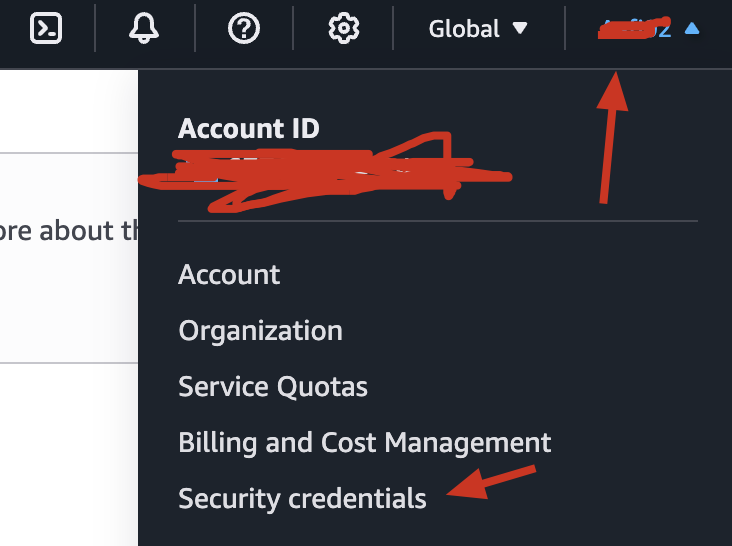
✅ Step 1: Simulate the Problem — Log in as Root
Why this step?
We want to see how CloudTrail captures this risky action.
-
Go to AWS Console
-
Log in using the root account email
-
Navigate to Billing Dashboard or Account Settings
-
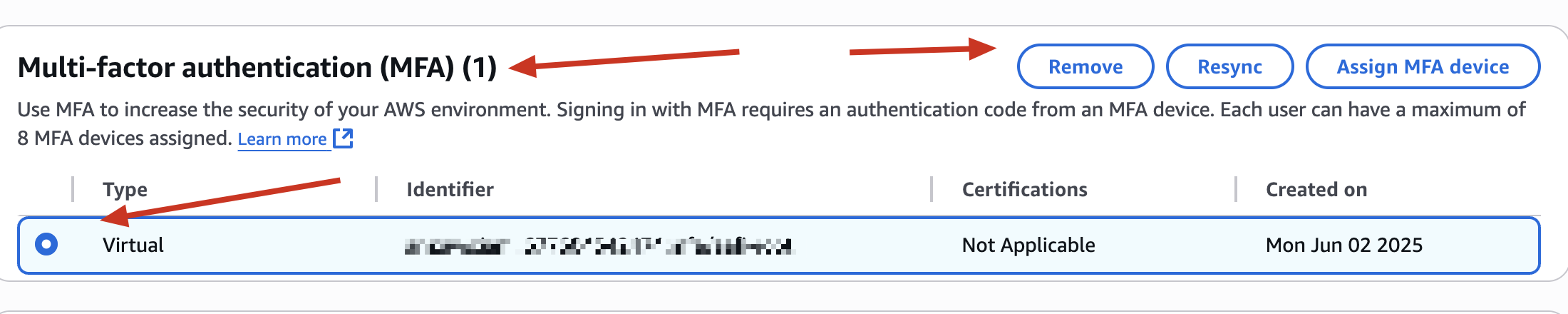
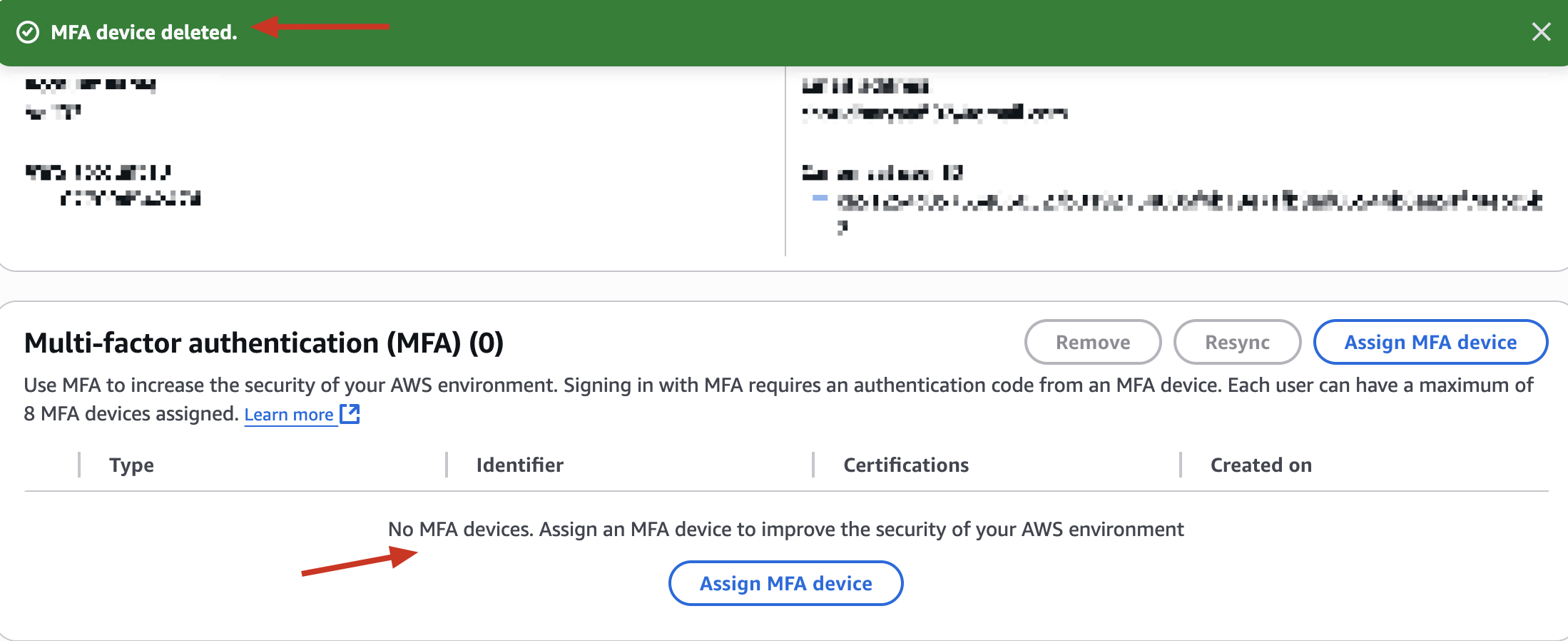
Try to disable MFA (if enabled)
🧠 This simulates a “sensitive operation” - exactly what an attacker might try.
📝 Step 2: Enable CloudTrail (if not already)
What is CloudTrail?
It’s AWS’s built-in logging system.
Every time someone does something (login, create S3 bucket, delete EC2 instance, etc.), CloudTrail writes it down.
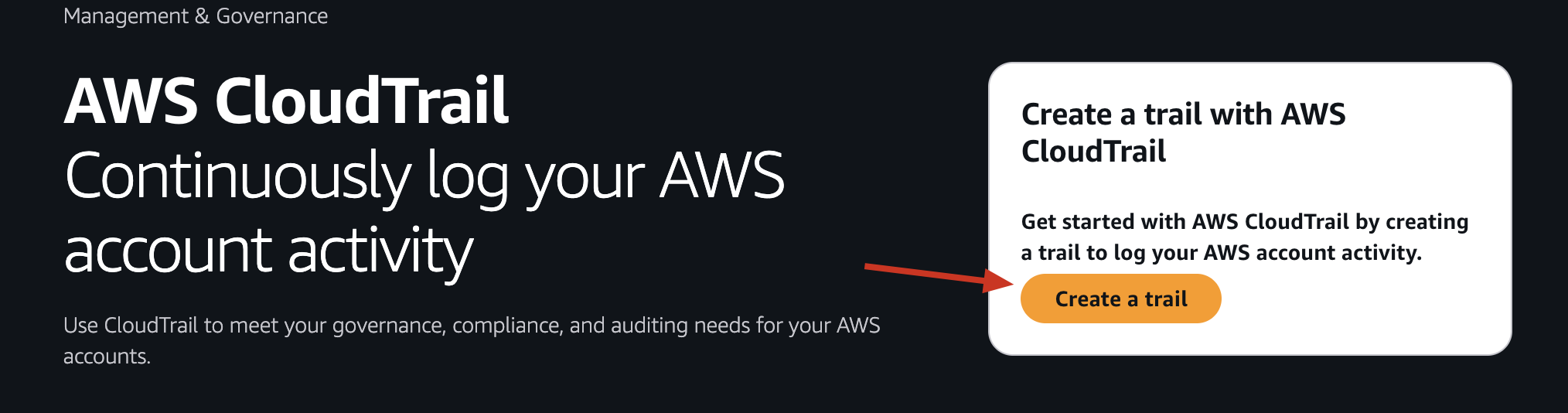
✅ Open CloudTrail Service
-
Go to the AWS Console, search for “CloudTrail” in the search bar, and click the result.
-
Click “Create trail”.
📝 Configure the Trail:
-
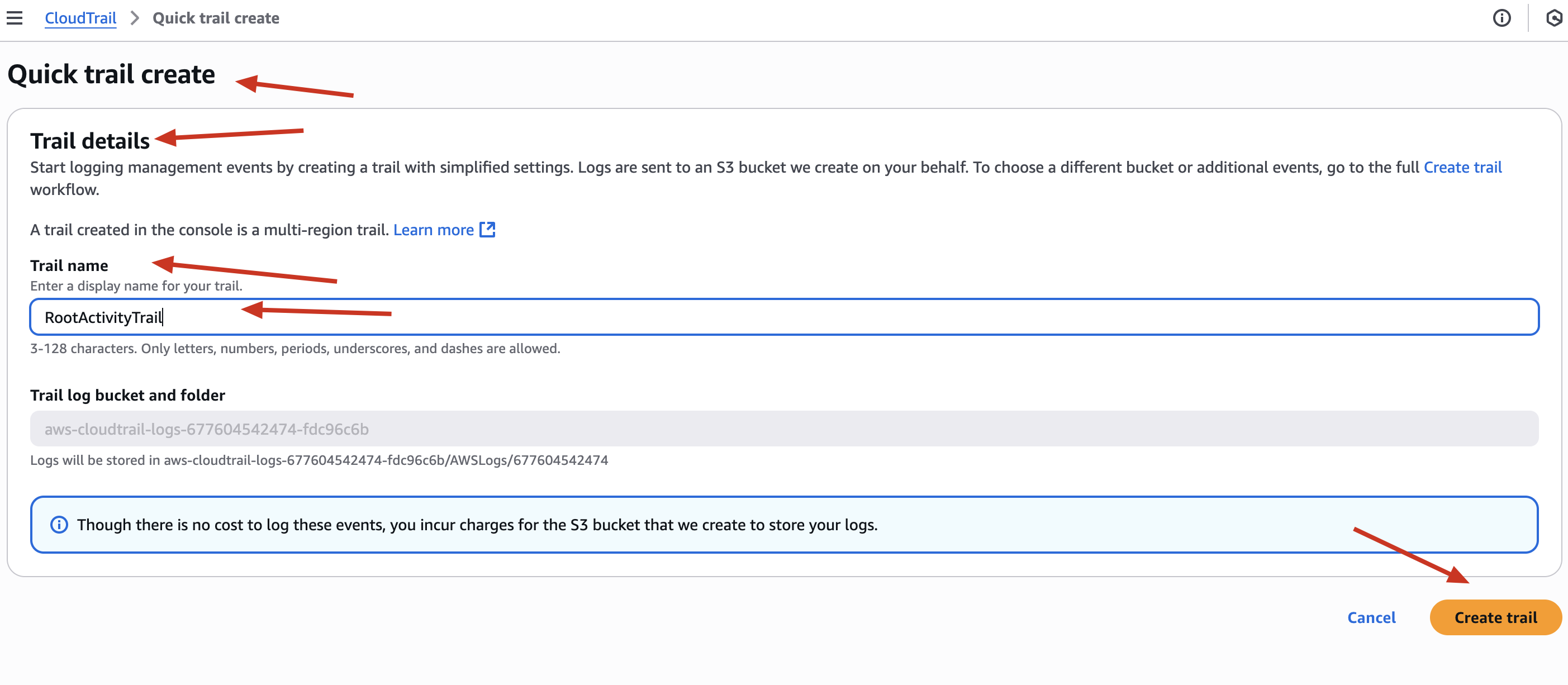
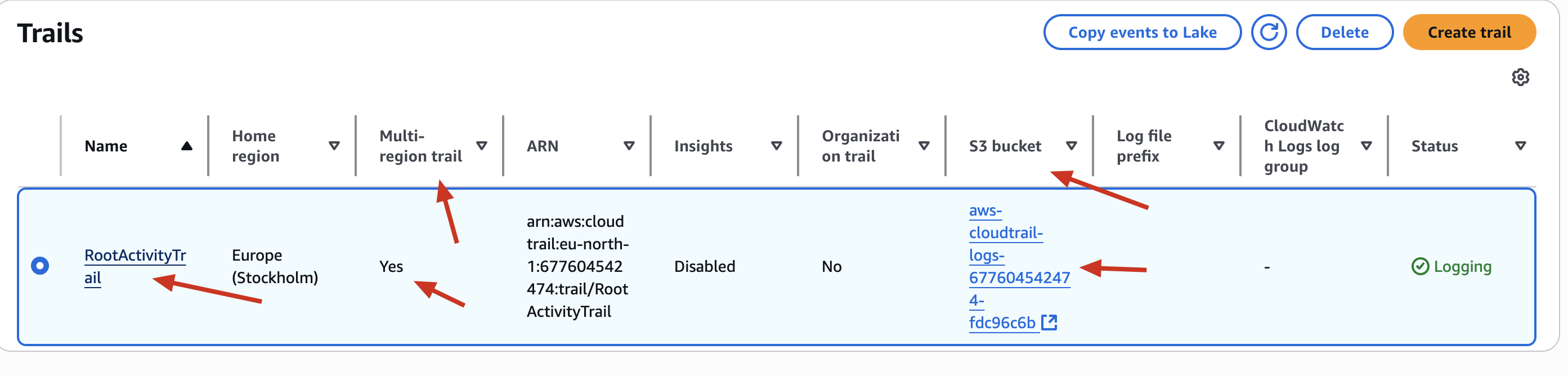
Trail name: I named it RootActivityTrail to clearly reflect its purpose.
-
You may not see options to choose Management/Event types or enable for all regions, because CloudTrail does this automatically now during the setups.
-
✅ CloudTrail enabled Multi-region trail by default - so activity in all AWS regions will be captured.
-
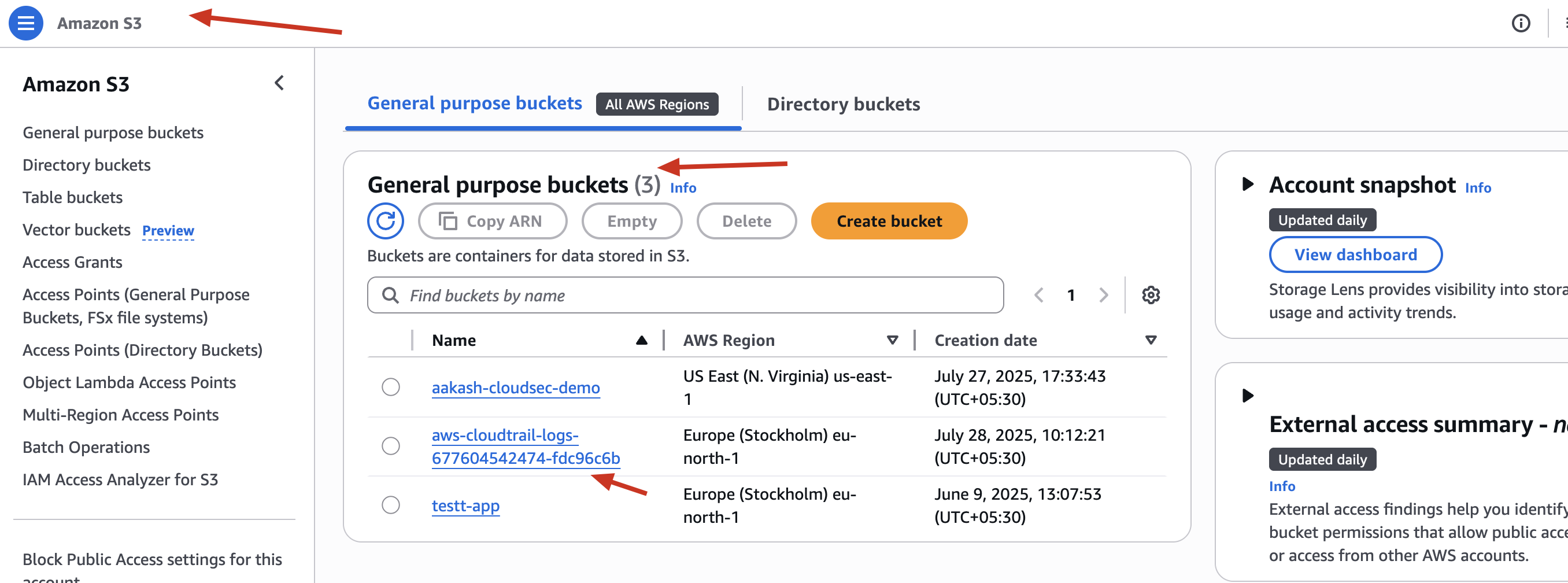
✅ CloudTrail also created a dedicated S3 bucket to store logs (you’ll see its name under the “S3 bucket” column later).
-
💡 Important Note:
When I tried this, I didn’t even need to create the S3 bucket manually. AWS CloudTrail smartly created a bucket named something like:
aws-cloudtrail-logs-677604542474-fdc96c6b
This automatic bucket creation makes life easier - especially for beginners!
✅ Done. Now, every action - including root login - will be logged.

So this step was about turning on the security cameras (CloudTrail) and pointing them at the most sensitive area (root account actions).
If anyone uses the root account - whether it’s you or someone malicious - we’ll catch it immediately in our logs.
🔔 Step 3: Set Up SNS — Our Alerting System
Why SNS?
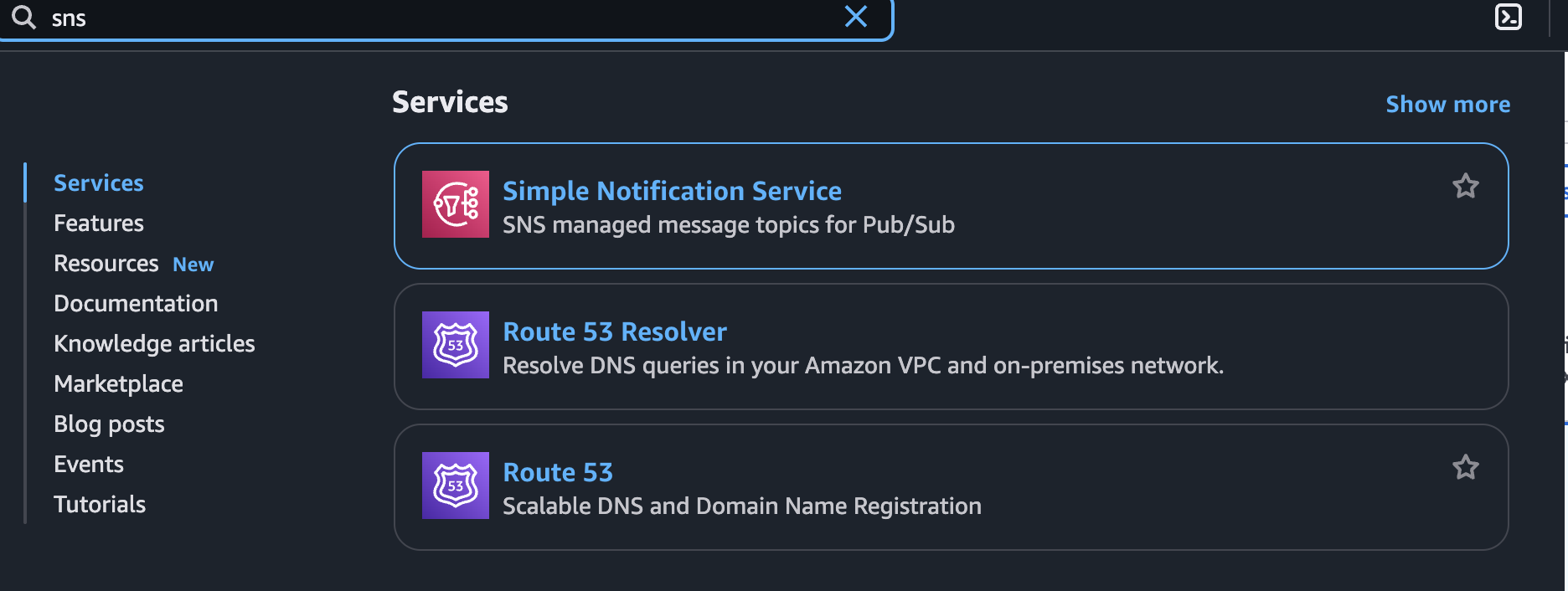
SNS (Simple Notification Service) can send alerts to email or SMS.
-
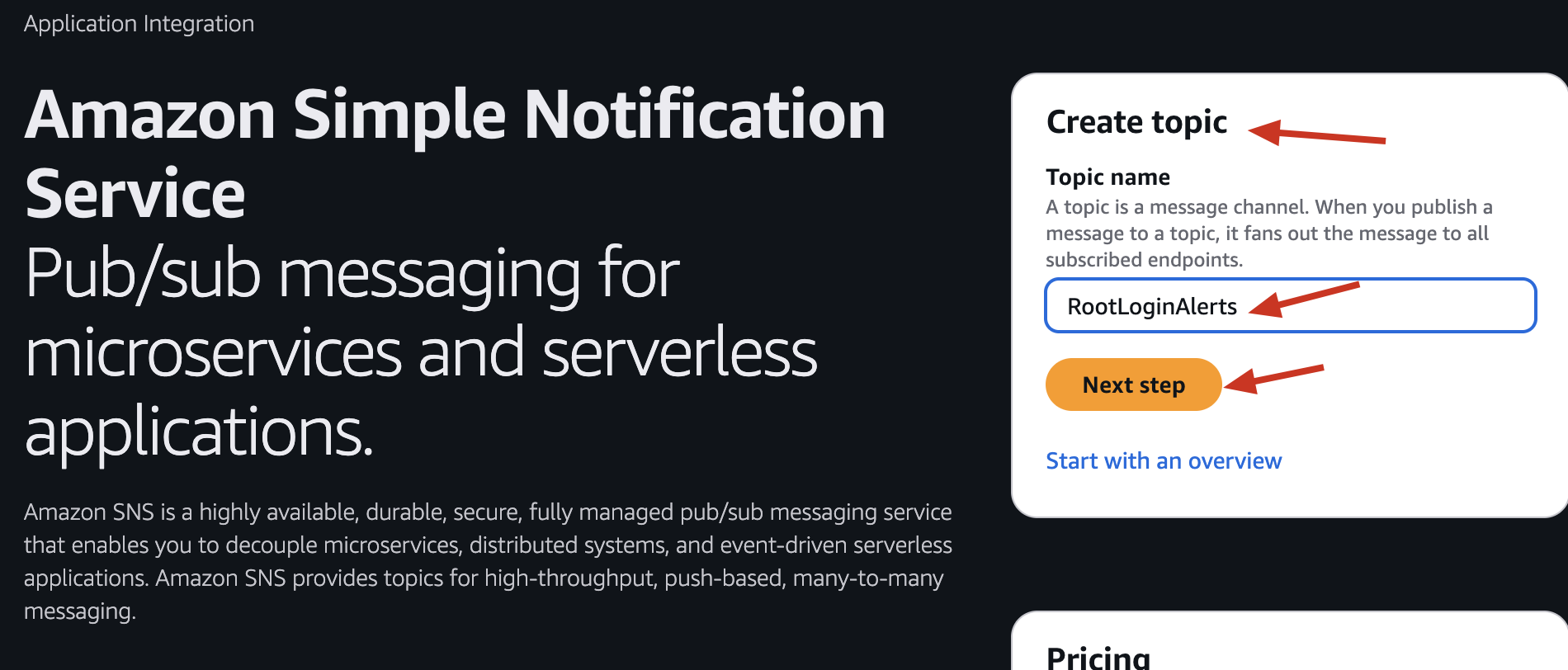
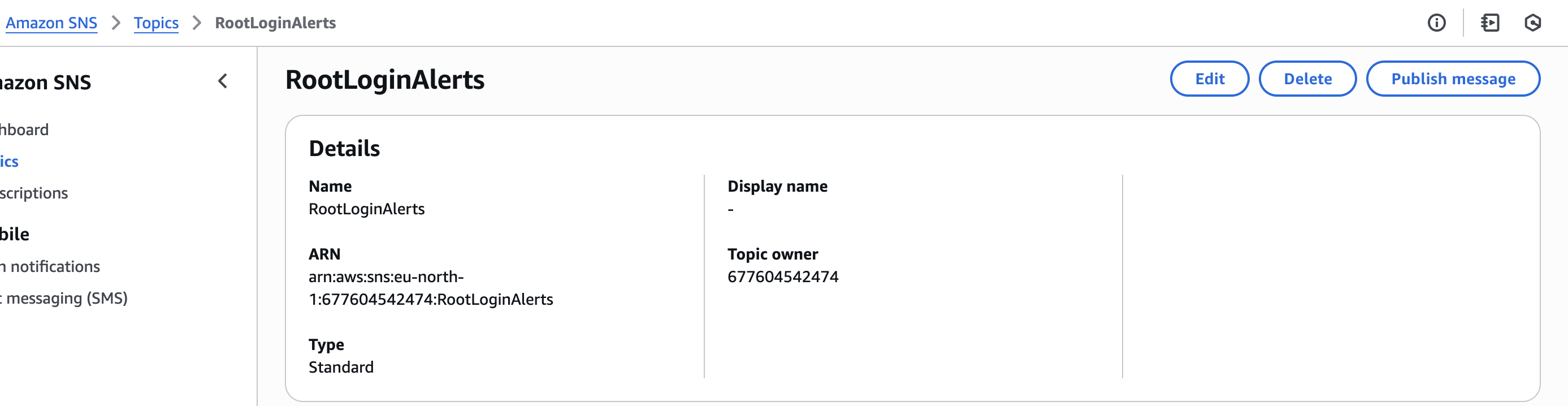
Go to SNS → Topics → Create Topic
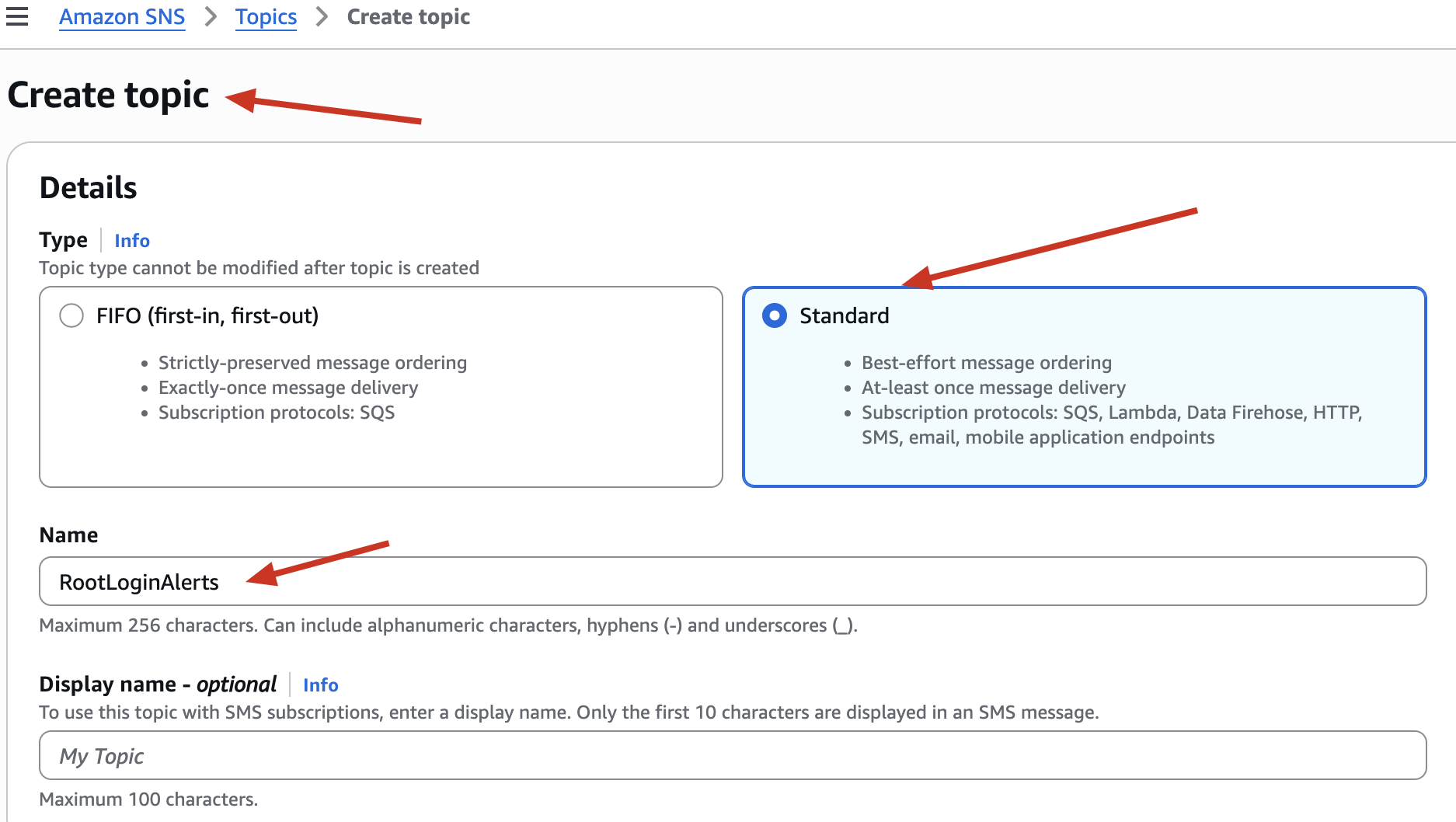
- Name: RootLoginAlerts
- In the “Create topic” screen:
-
✅ Type: Choose Standard (default)
-
Best-effort ordering
-
At-least once message delivery
-
Supports multiple protocols like Email, Lambda, SQS
-
-
🧠 Why not FIFO?
FIFO topics are mainly for ordering and deduplication in SQS - unnecessary for notifications. Standard gives us flexibility for email alerts. - Right now, your SNS topic doesn’t know where to send the alert. We need to subscribe your email address so you get notified instantly when the root account logs in.
-
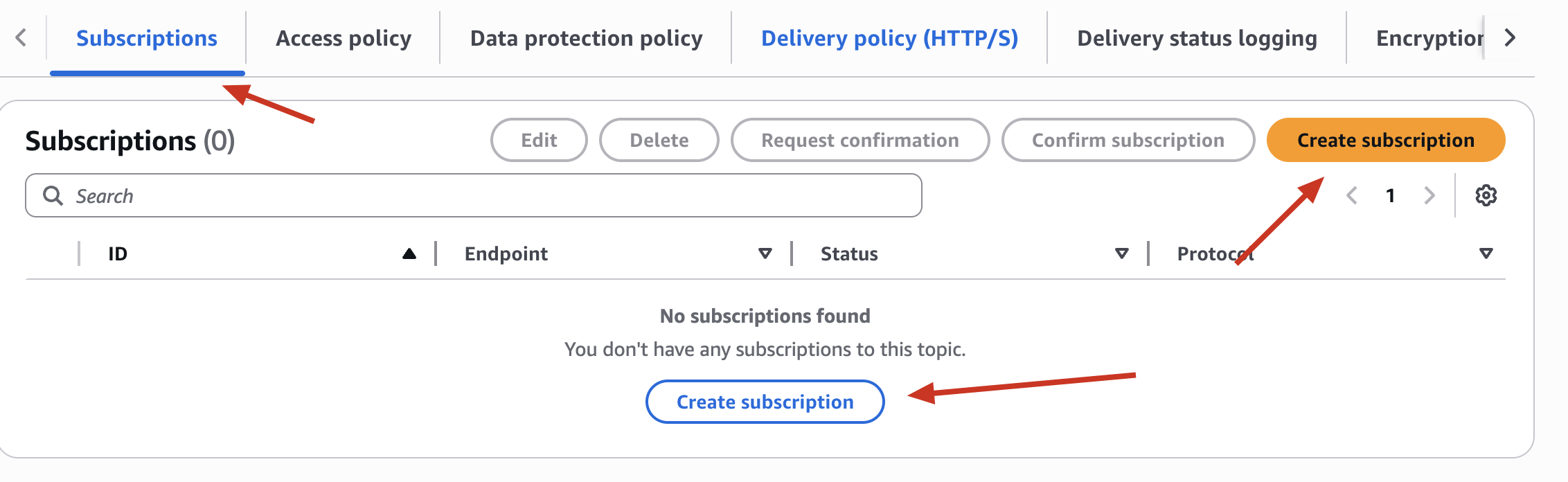
Click on the topic → Create subscription
-
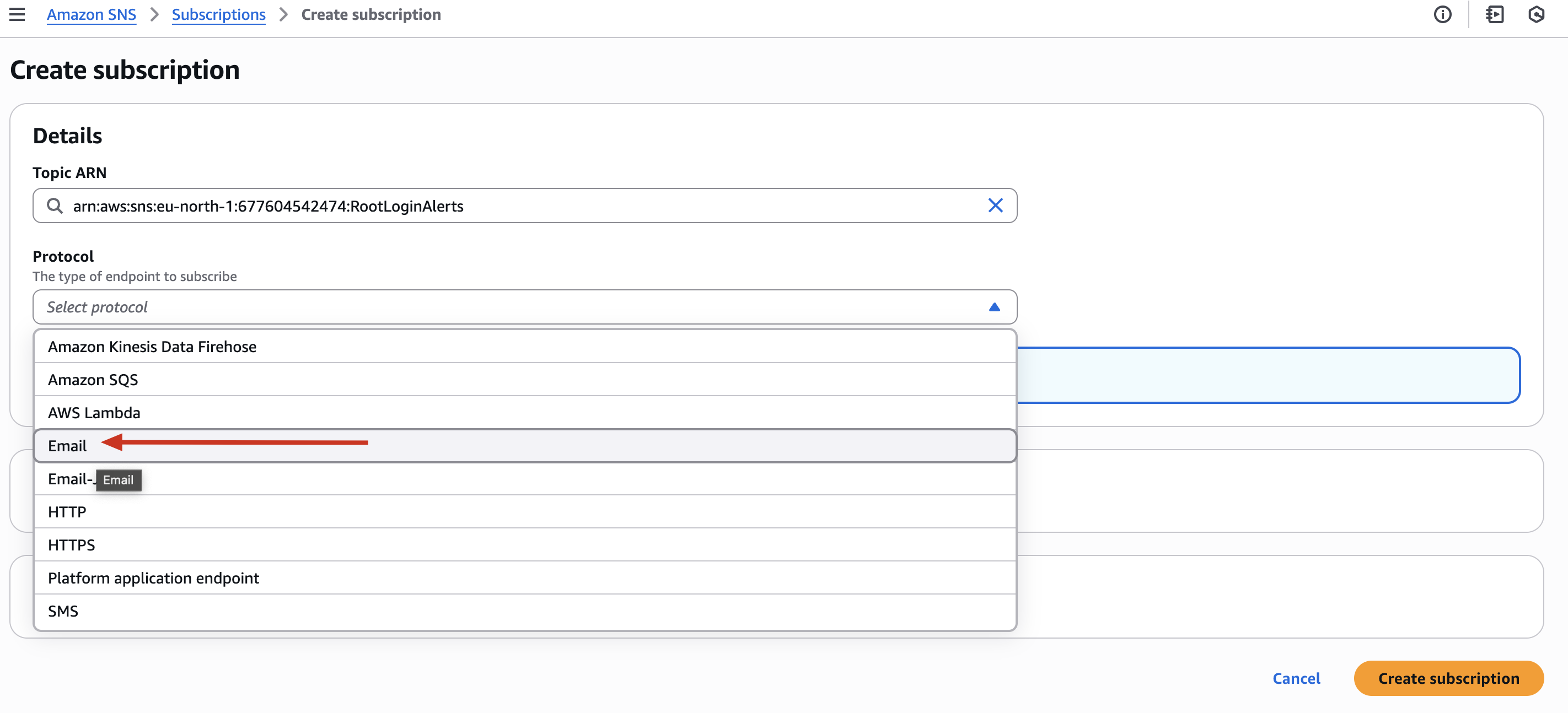
Protocol: Email
-
Endpoint: Your personal email
-
- Check your inbox and confirm the subscription
📧 Now you’re ready to receive alerts.
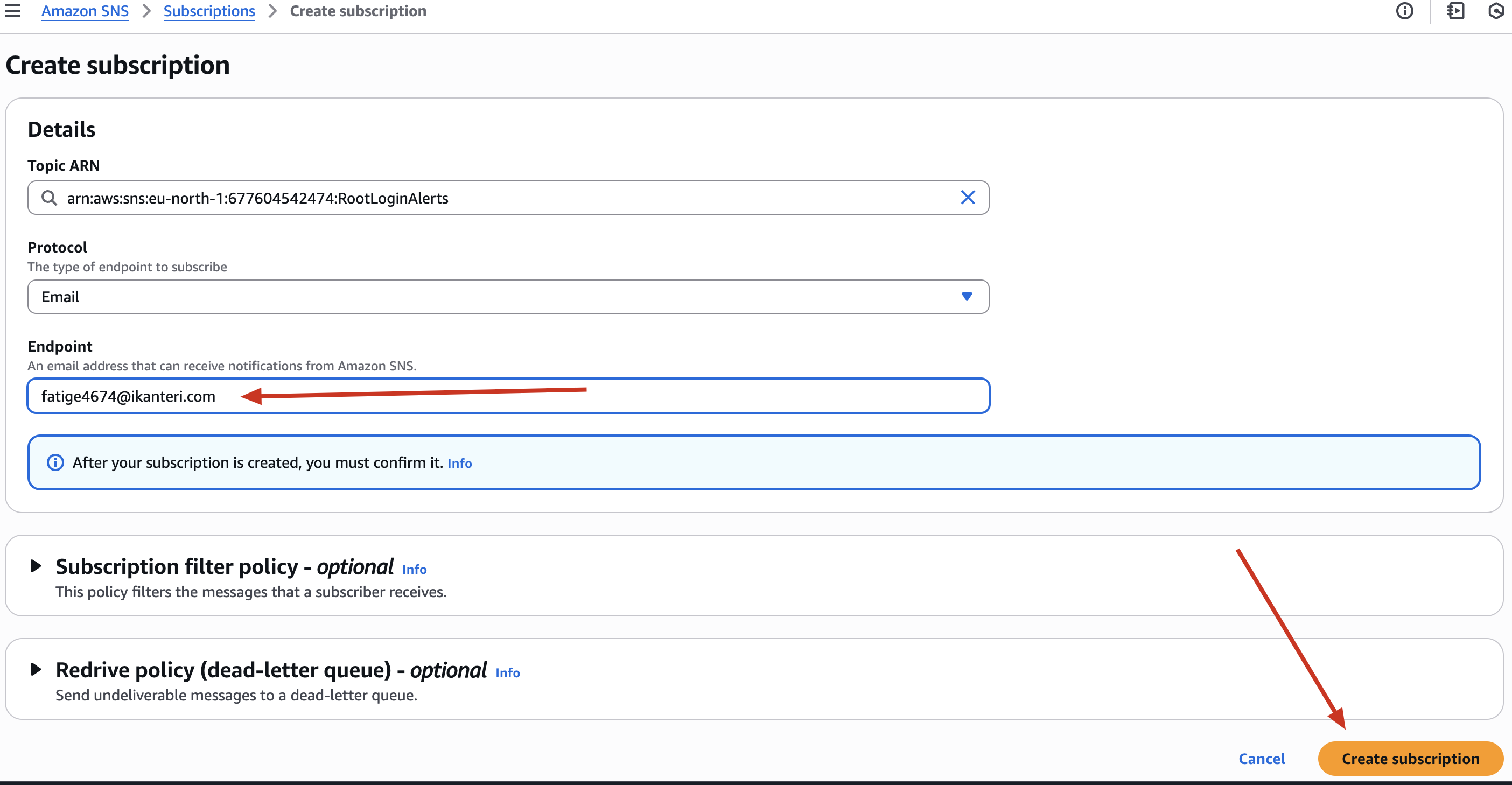
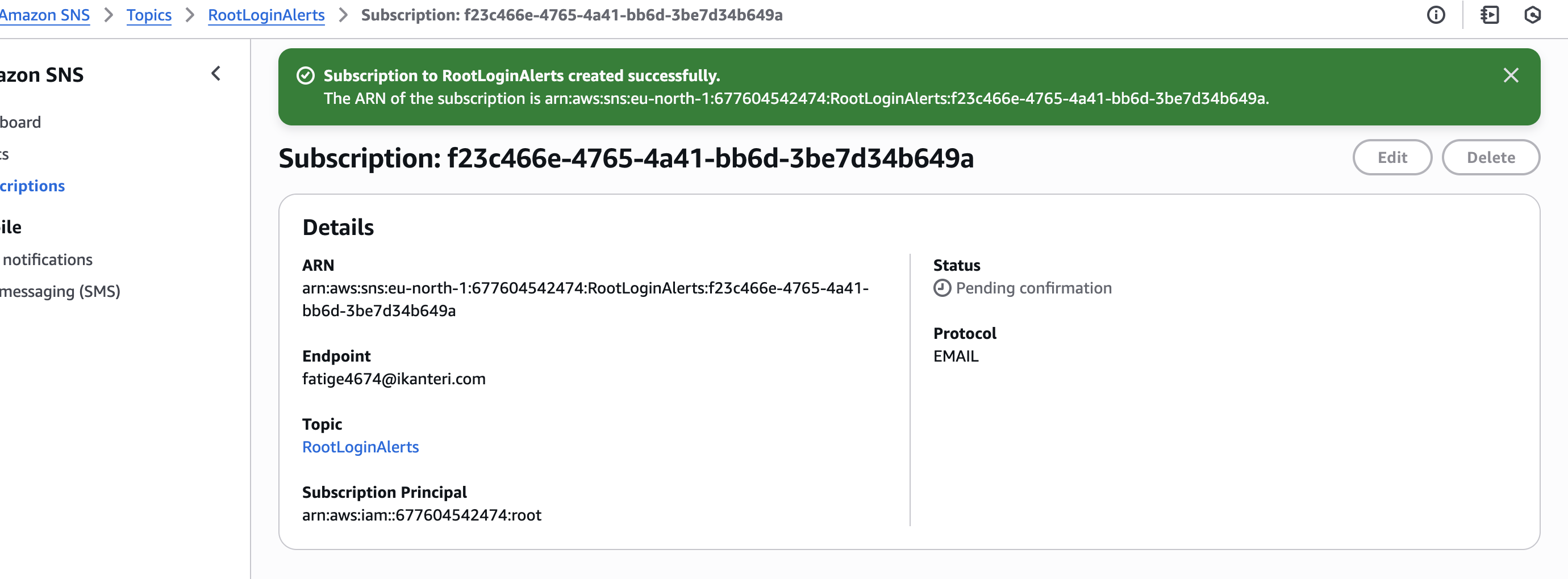
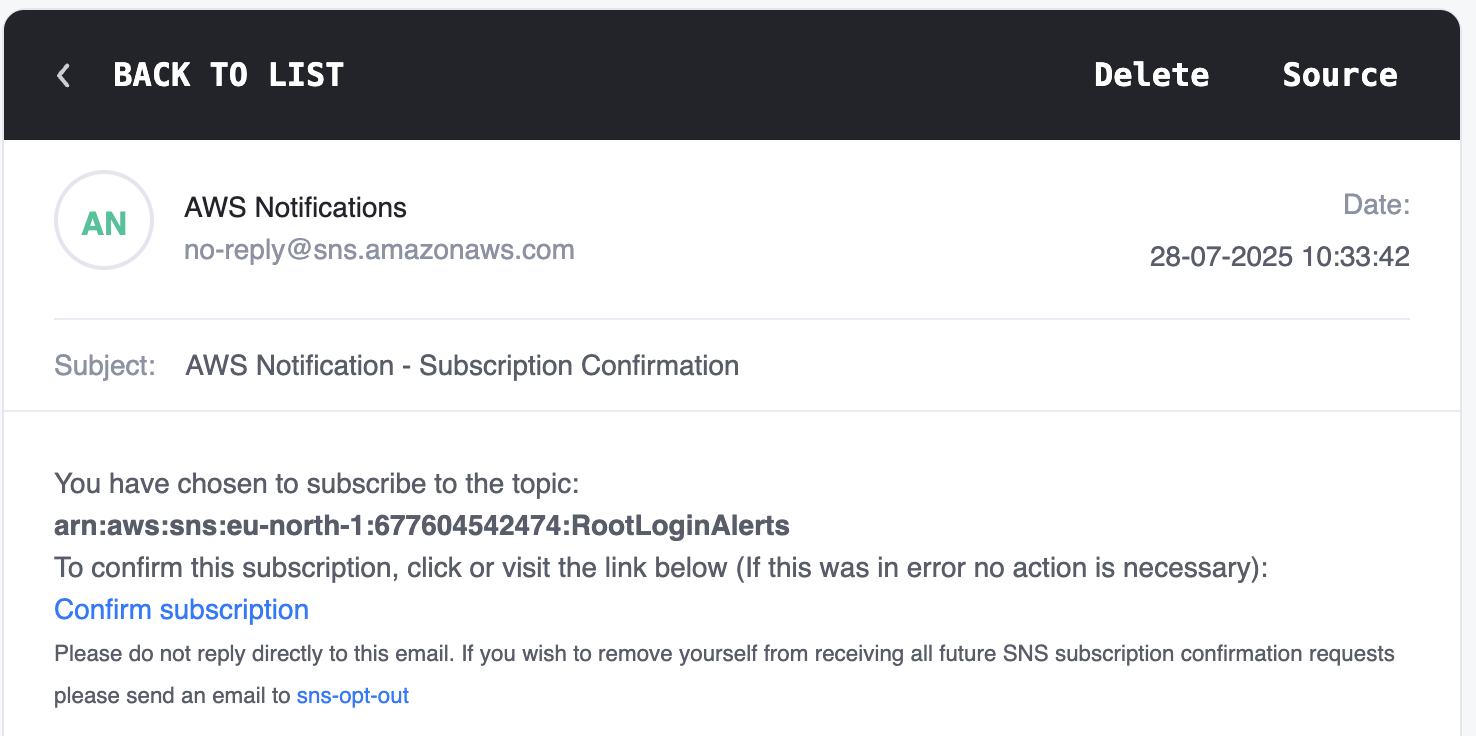
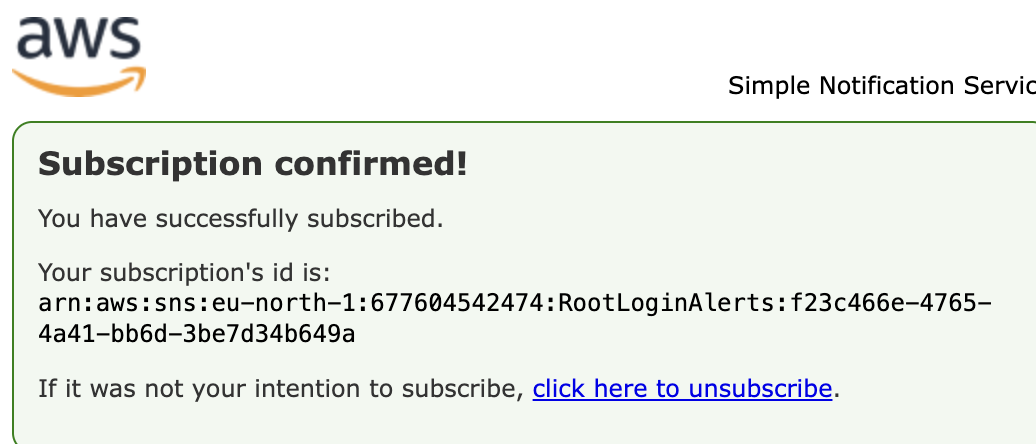
Though i used temp email but you need to use proper active email as you will get a confirmation link you must click before alerts start coming.
🔐 Why This Step Is Critical for Security
Just logging a root user login event isn’t enough. You need to be notified immediately, in case it wasn’t you.
Real-world misconfig:
Many engineers set up CloudTrail and even an SNS Topic, but forget to subscribe an endpoint. So when root login happens, they never find out.
We’re not making that mistake. 😉 You’ll get alerted within seconds of a root login.
📡 Step 4: Create CloudWatch Rule (EventBridge)
We now tell AWS:
“If anyone logs in using the root user, send me an alert.”
First, Let’s know about CloudWatch and EventBridge
🤔 CloudWatch vs EventBridge — What’s the Deal?
If you’re confused about where to create the alert rule — whether in CloudWatch or EventBridge - you’re not alone.
Here’s the truth in simple terms:
EventBridge is the upgraded version of CloudWatch Events.
You’ll still hear a lot of tutorials and documentation saying:
“Create a CloudWatch Event Rule…”
But when you go to AWS Console, there’s no “Events” section inside CloudWatch anymore. Instead, AWS has moved that feature into a service called Amazon EventBridge.
✅ So what does this mean for you?
-
Yes, you’re technically still creating a CloudWatch Event Rule
-
But, you now create it inside EventBridge, not CloudWatch
-
Behind the scenes, it’s using the same API - just a new UI and new name
-
Bonus: EventBridge has cool new features (like Schema Registry, Pipes, Partner Events)
Here’s how AWS explains it:
EventBridge was formerly called CloudWatch Events. EventBridge uses the same CloudWatch Events API, so your existing setup still works - just with more features.
🚧 Why This Matters for Security Engineers
If you’re monitoring root account usage (like we are in this project), you’ll often find old blogs telling you to:
“Create a CloudWatch Event Rule for root login.”
But when you go to CloudWatch in the AWS Console… no such thing exists anymore.
👉 That’s because it’s all inside EventBridge now!
So don’t get stuck - just remember:
💡 When someone says “CloudWatch Rule,”they mean an “EventBridge Rule” now.
See this ->
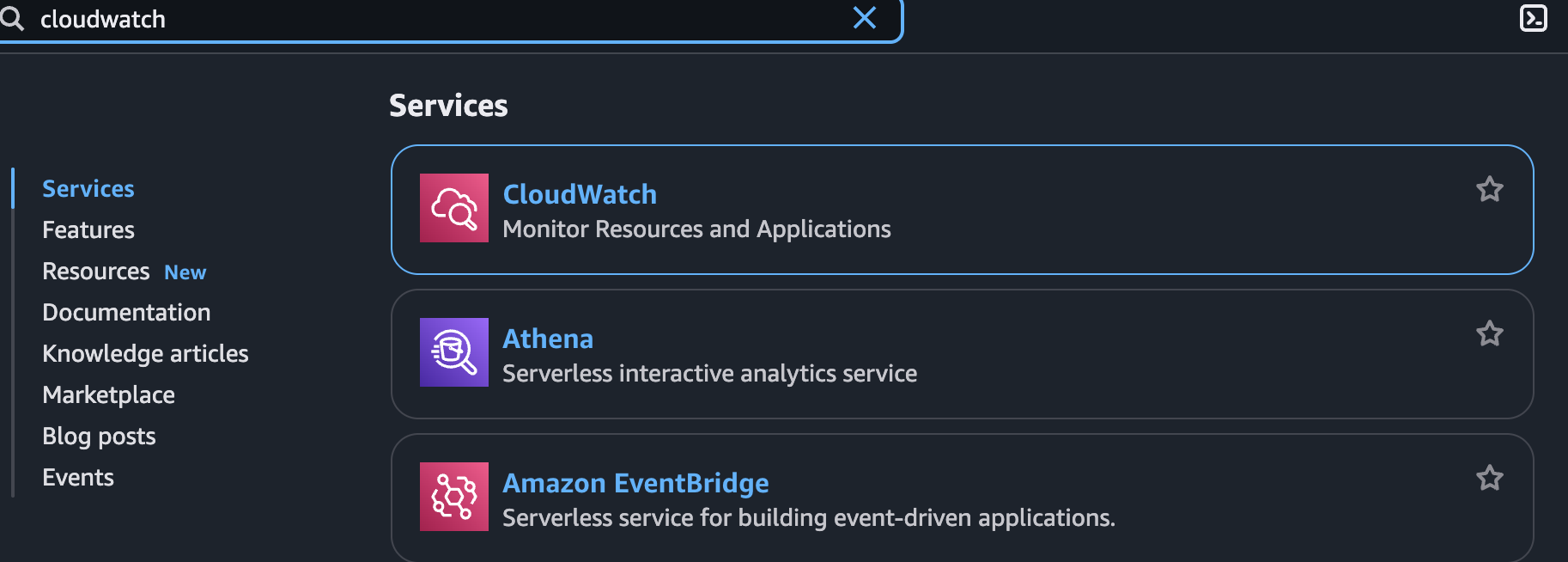
Why AWS Shows Both CloudWatch and EventBridge?
-
CloudWatch still handles metrics, dashboards, alarms, logs.
-
EventBridge now handles event rules and routing, which used to be called CloudWatch Events.
So both services exist for different monitoring and response purposes.
So ->
| Feature | Use This Service |
|---|---|
| Metrics, logs, alarms | CloudWatch |
| Event rules/triggers | EventBridge (new name for CloudWatch Events) |
Think of EventBridge as the “postal system” of AWS.
It listens for “events” (like someone uploading a file to S3 or starting an EC2 instance), and then automatically sends those events to specific targets (like Lambda, SNS, SQS, Step Functions) based on rules you define.
It’s fully serverless, scalable, and great for event-driven automation.
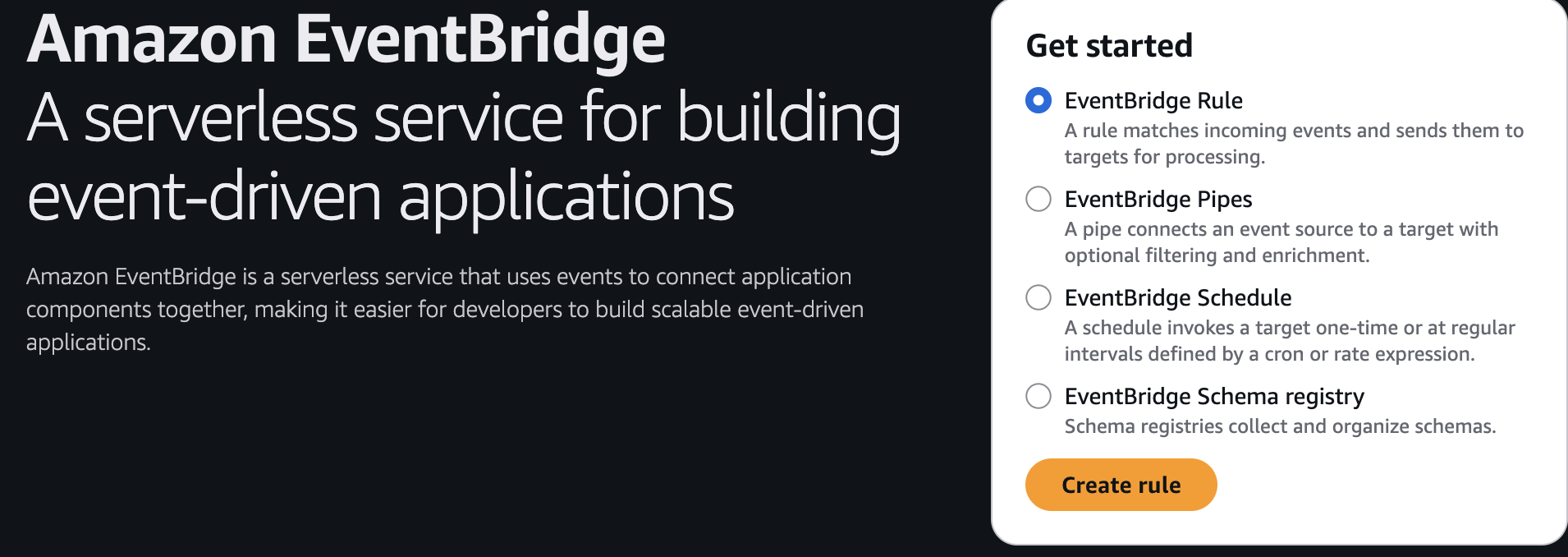
So there is many components right now like EventBridge Rule, EventBridge Pipes etc Let’s first know about this and which one we need for this time
- EventBridge Rule
- “When this happens, do that”
- Example: When someone modifies an S3 bucket policy (event), send alert to SNS (target).
- You define a rule that listens for a pattern in events and sends matching events to the target service.
- EventBridge Pipes (NEW Feature)
- Directly connect an event source to a target - like a pipe.
- Useful for streaming-style processing.
- You can even filter and enrich the event in between using Pipes.
- Example: Send filtered DynamoDB stream events to Lambda.
- EventBridge Schedule
- Like a cron job.
- Trigger a target (e.g., Lambda, Step Function) at fixed intervals - daily, weekly, every minute, etc.
- Example: Check IAM role age every 24 hours and rotate if needed.
- EventBridge Schema Registry
- A place to collect and organize all your event structures.
- It auto-discovers the shape (JSON structure) of incoming events.
- Great for developers building apps that consume AWS events.
🤯 Why Is EventBridge Important for Security Engineers?
-
Automated Detection
-
Detect changes like EC2 starting, IAM policy changes, S3 public access attempts.
-
Automatically trigger Lambda or notify via SNS/Slack/Email.
-
-
Real-Time Response
- EventBridge + Lambda can auto-revert misconfigurations (e.g., make an S3 bucket private again if someone makes it public).
-
Audit & Monitoring
-
Forward events to S3 or CloudWatch Logs for security auditing.
-
Build alerts on suspicious activity.
-
-
Decoupled Architecture
- Improves your security system design by decoupling detection and response logic.
Let’s come to our Project now ->
- Select EventBridge Rule and click on Create Rule
We will see this ->
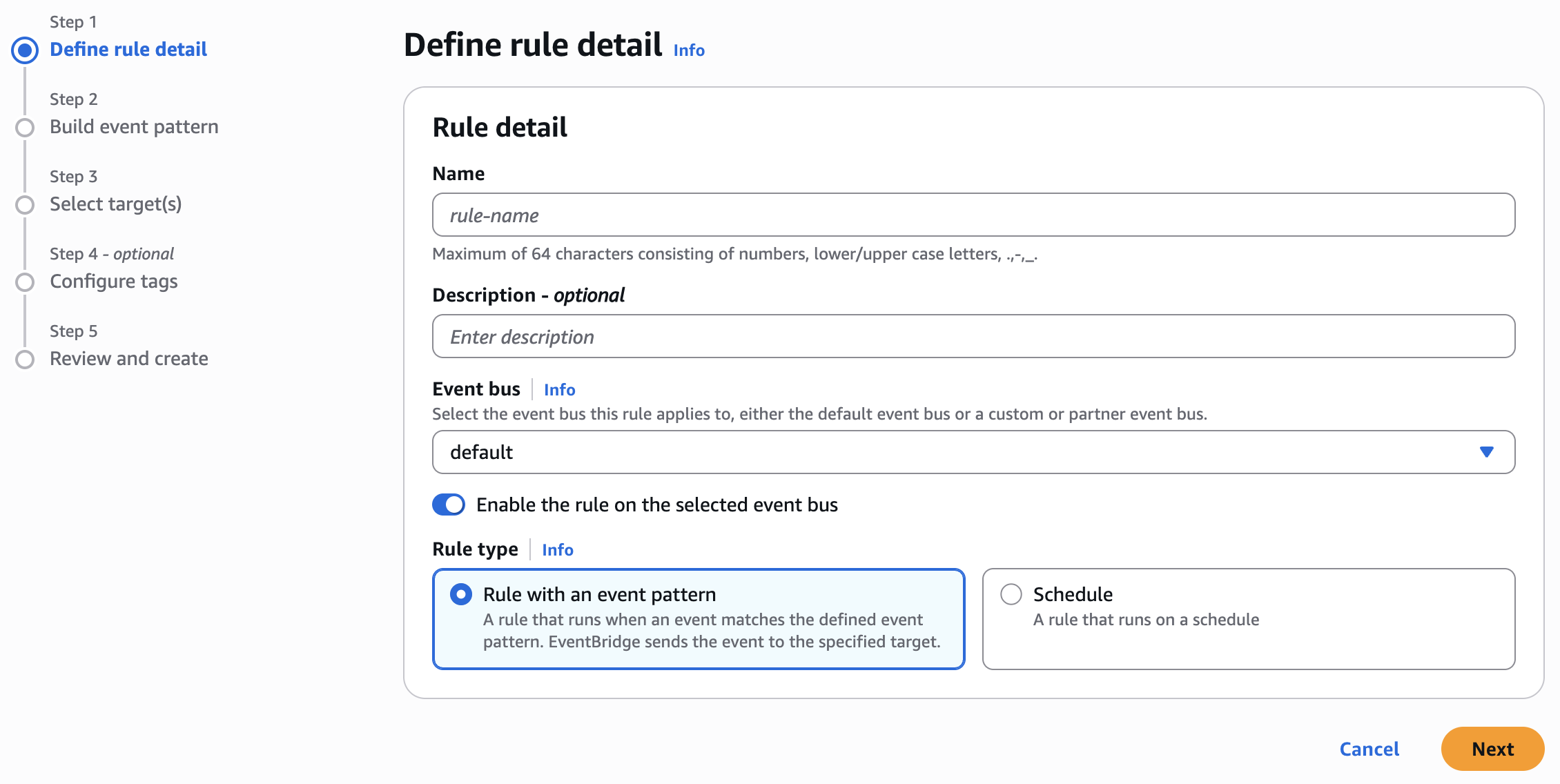
- Let’s choose Name -> DetectRootLogin
- Rule Type -> Rule with an event pattern
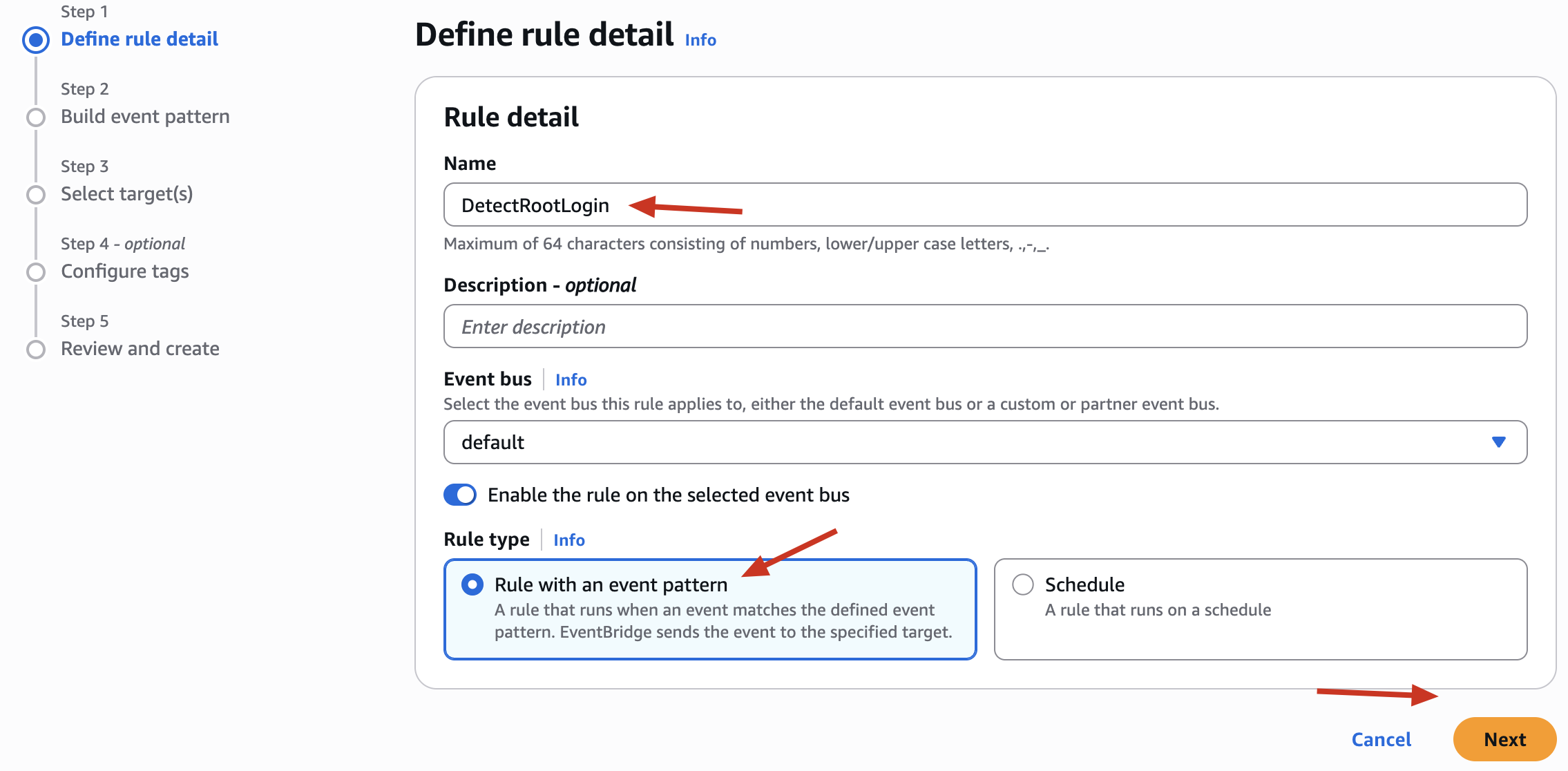
We Selected Rule with an Event Pattern - Bt Why ?
Trigger this rule only when a specific event happens So This is for event-driven automation When that exact pattern happens, AWS triggers the rule. This is what you want for security monitoring - listen for specific activities like root account usage.
But What about Rule with a Schedule ?
Trigger this rule every X minutes/hours/days no matter what You define a fixed cron schedule (like “run every 1 hour”). Useful for periodic checks or batch jobs This is not what we need right now because we’re not doing something on a time schedule - we’re reacting to a real-time event.
We will now see following screen ->
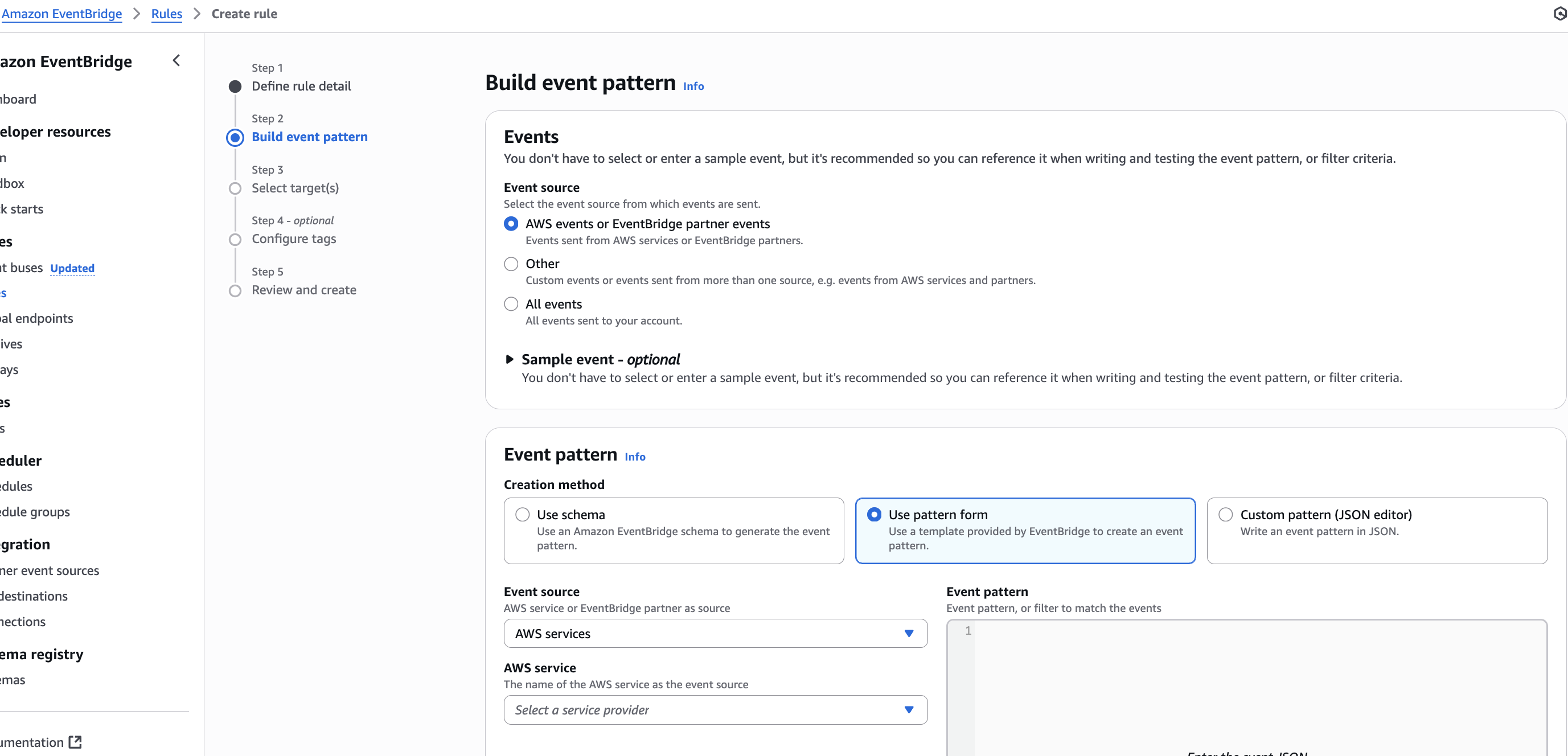
- Keep Selected AWS events or EventBridge partner events
- Event Pattern → Creation method
- Keep selected: Use pattern form (default and easier)
- Even Source -> AWS Services
- AWS Service ->
- Select:
CloudTrail - Because all console login events — including root user logins — are logged by CloudTrail
- Select:
- Event type ->
- Select: AWS API Call via CloudTrail
So Far we will see this ->
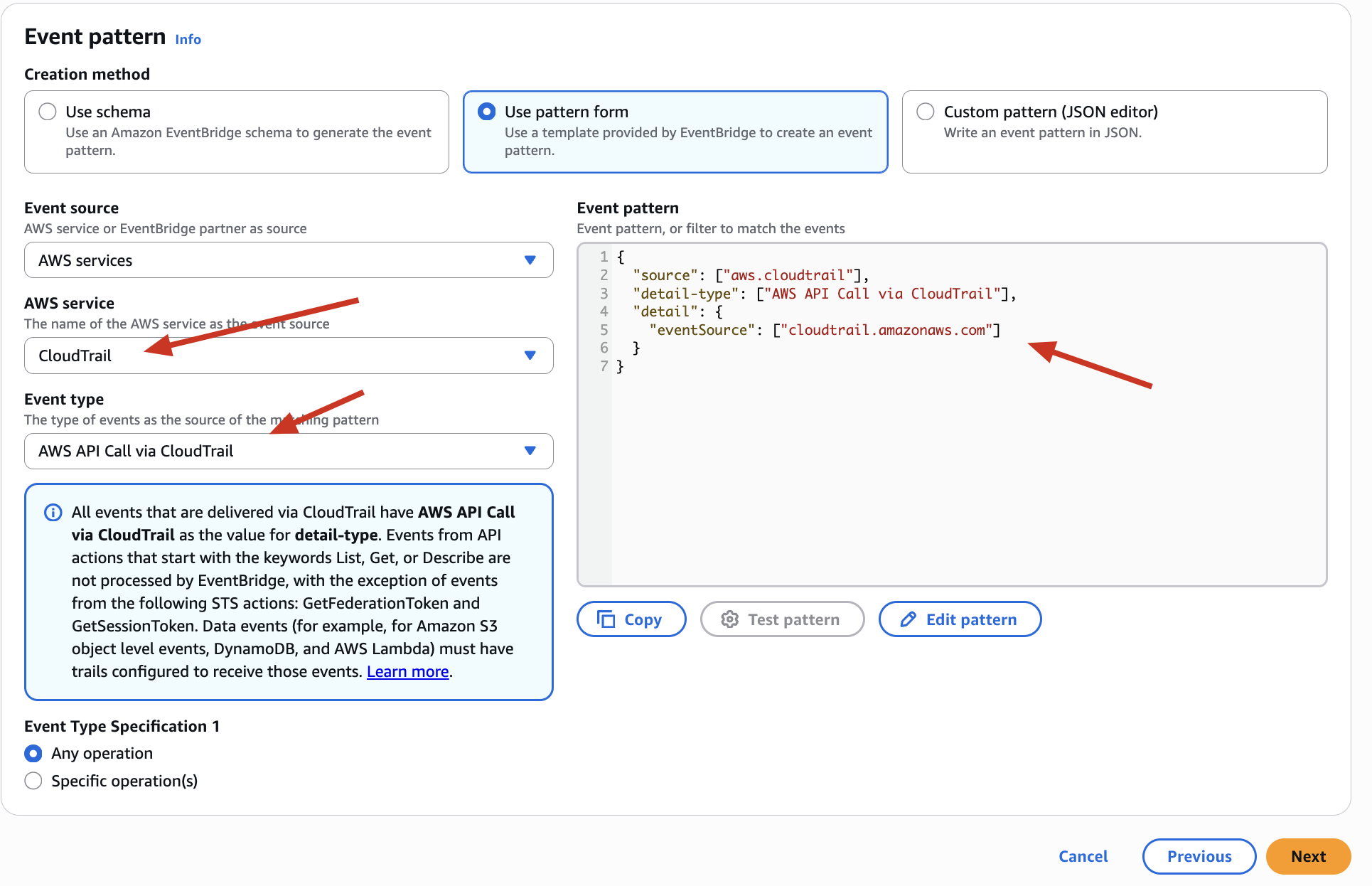
So We get this ->
{
  "source": ["aws.cloudtrail"],
  "detail-type": ["AWS API Call via CloudTrail"],
  "detail": {
    "eventSource": ["cloudtrail.amazonaws.com"]
  }
}
Before knowing about this , let’s first know what exactly is this
What is an Event Pattern in EventBridge?
Imagine you are the security guard at a giant office building (your AWS account). You’re watching hundreds of employees (AWS services and users) coming in and doing all kinds of activities - uploading files, running servers, logging in, deleting data.
But you don’t care about everything. You only want to be notified when something specific happens - like “someone enters using the CEO’s master key” (Root account login).
That’s where EventBridge event patterns come in.
An Event Pattern is like a filter rule.
It tells AWS:
“Hey, I only care about this kind of event. Ignore everything else.”
AWS services constantly emit events - structured JSON messages - about what’s happening in your account. EventBridge listens to these events and matches them against your pattern.
Only when the pattern matches, your rule is triggered - and the target (email, Lambda, SNS) is notified.
So, we saw Pattern above , let’s know about that pattern ->
What it does:
-
Catches every API call logged by CloudTrail.
-
Very broad - will flood you with too many notifications.
-
Not suitable for alerting on specific logins like root.
So, instead of this Pattern we need following Corrected Pattern ->
{
  "source": ["aws.signin"],
  "detail-type": ["AWS Console Sign In via CloudTrail"],
  "detail": {
    "eventName": ["ConsoleLogin"]
  }
}
- Just Click on Edit and save above Corrected Pattern there
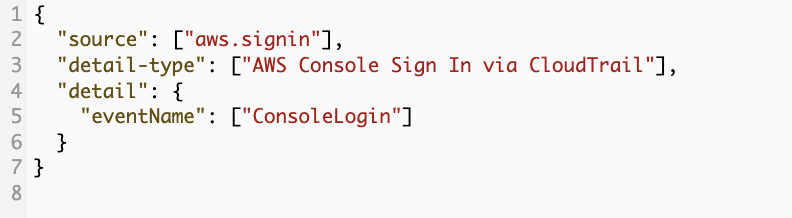
What it does:
-
Triggers only on AWS Console sign-in attempts.
-
ConsoleLogin is the specific event name for sign-ins.
-
This event includes fields like:
-
userIdentity.type: e.g.,Root,IAMUser,AssumedRole -
responseElements.ConsoleLogin:SuccessorFailure
-
-
You can further filter by root user later (we’ll see this in SNS or Lambda filters or in CloudWatch alarms).
🧪 How does this help us?
-
Noise reduction: You only get alerted for actual sign-ins, not every API call.
-
Security focus: You care about who logs into your account, especially root.
-
Flexible filtering: You can later narrow this pattern to:
"userIdentity.type": ["Root"] -
Real-time alerts: As soon as this login happens, EventBridge triggers an action - like sending an email or a Slack message.
Next we will see following screen ->
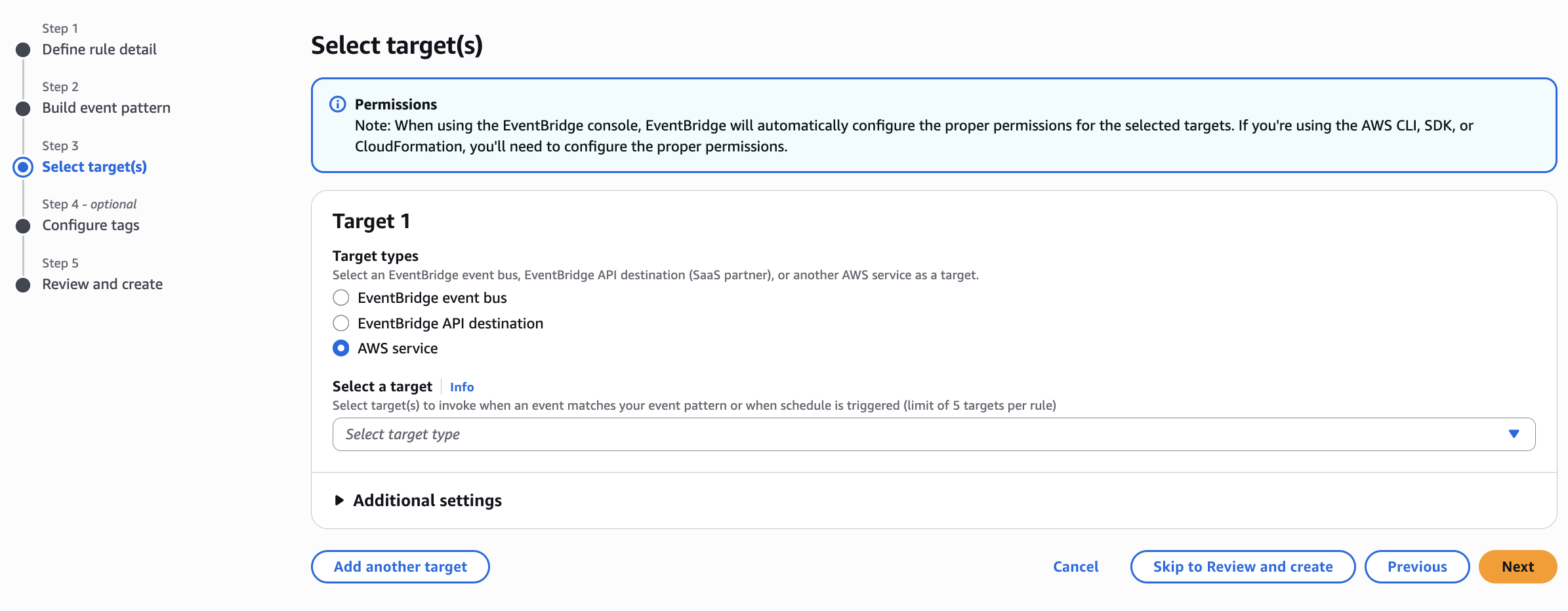
Before going further, let’s know about this steps as well ->
A Target is what should happen when the rule is triggered.
We already defined the “when” using our event pattern (e.g., someone logs in using the Root account).
Now you must tell AWS:
👉 “Okay, this just happened — now do this!”
We see 3 Options above as you see -> Let’s know about this as well ->
| Target Type | What It Does |
|---|---|
| EventBridge Event Bus | Sends the event to another EventBridge bus (advanced use case) |
| EventBridge API destination | Sends the event to a 3rd-party SaaS system via HTTPS |
| AWS service ✅ | Triggers an action in any AWS service (like SNS, Lambda, SQS, Step Functions, etc.) |
In Out Case -> want to be notified when root login happens, so we’ll choose:
✅ AWS Service → SNS (Simple Notification Service)
So Select a Target for SNS ->
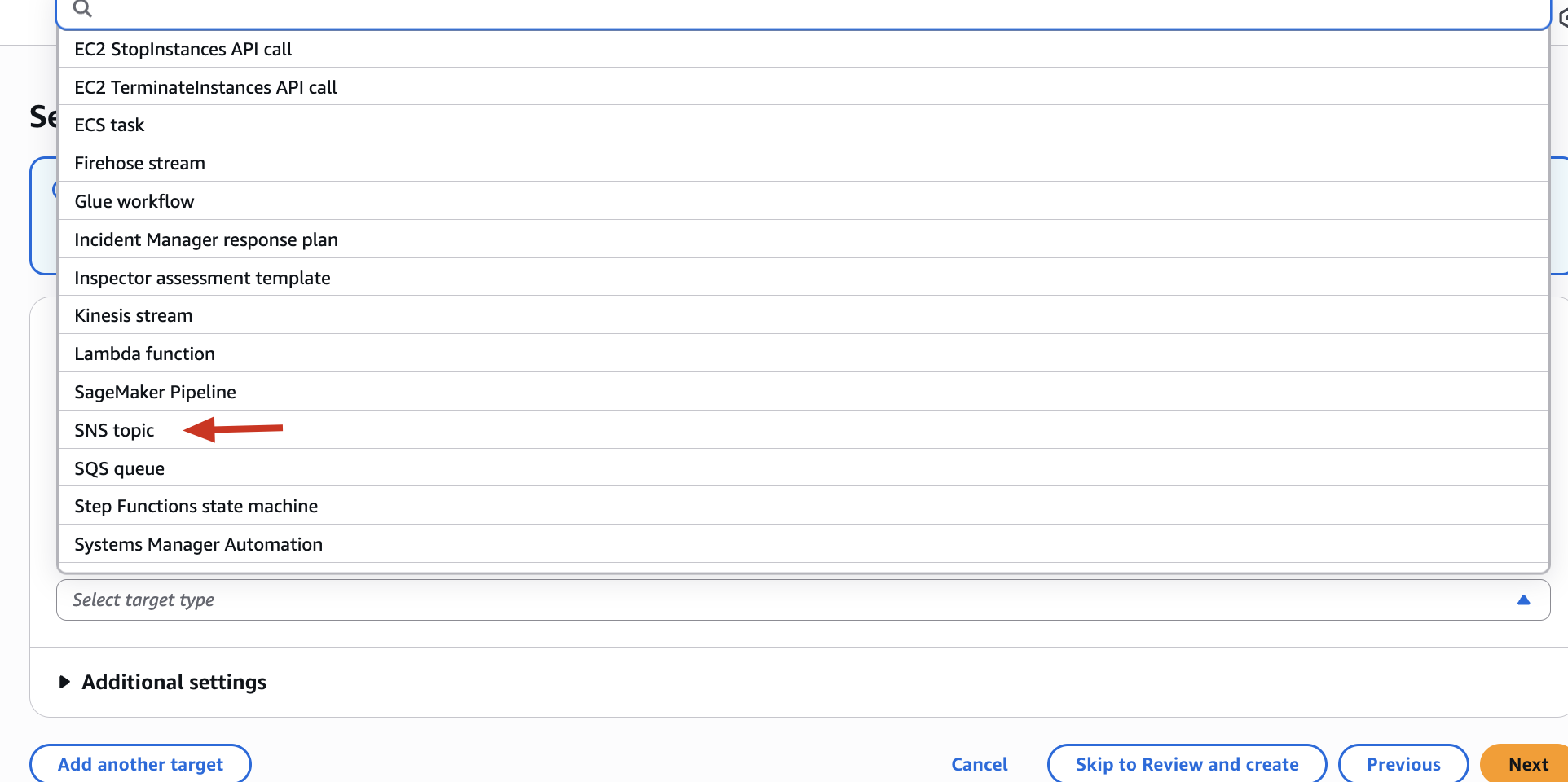
Why Choose SNS?
-
SNS lets you send emails, SMS, or even forward to other AWS services.
-
You can subscribe your email address to a topic.
-
So as soon as the event happens, you get a real-time alert like:
📧 Subject: Root Login Detected in AWS
“A ConsoleLogin event was detected for the Root user. This is a serious security concern…”
Now we will see more options ->
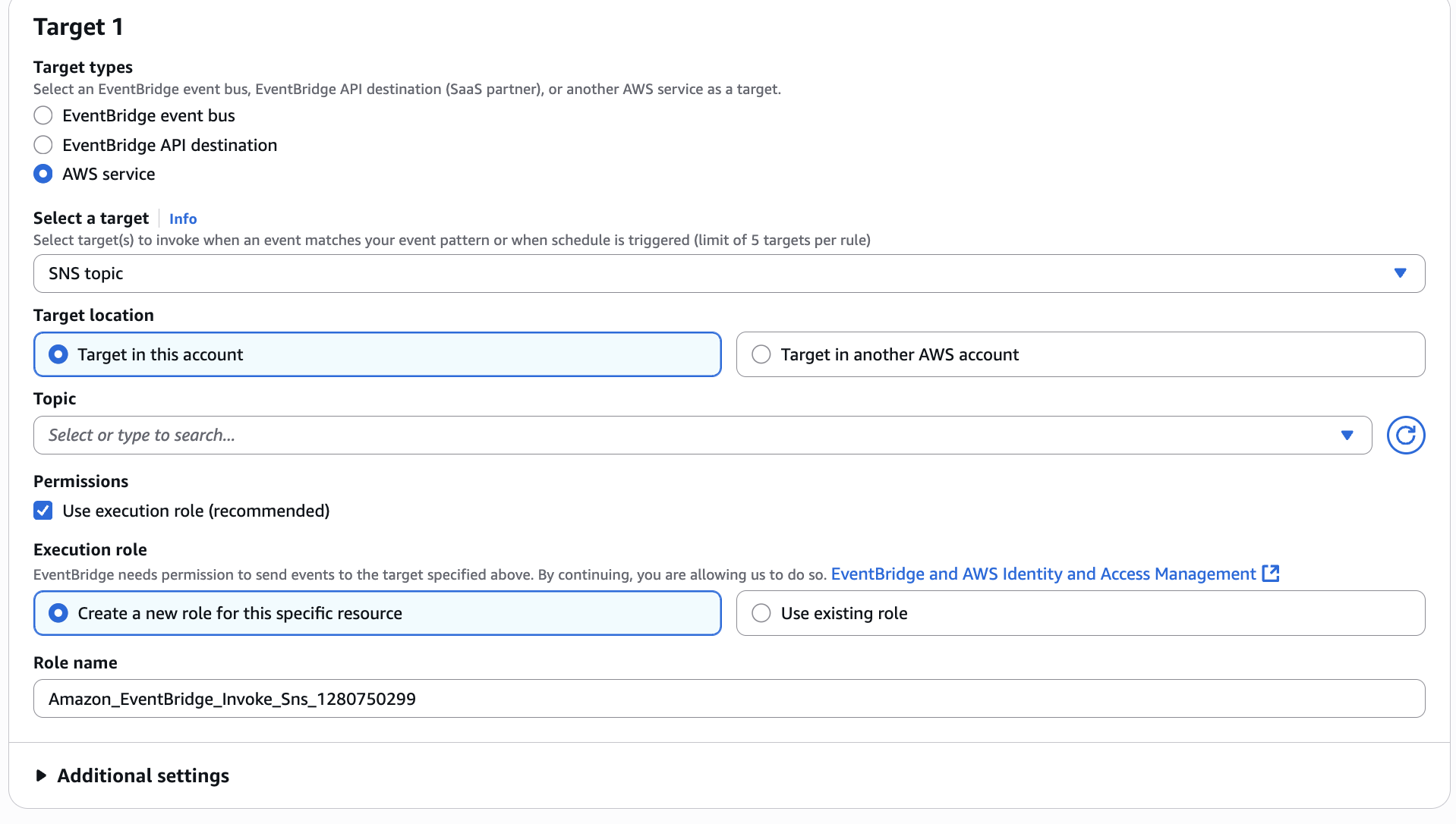
Let’s know about this as well ->
| Option | When to Use | Your Case |
|---|---|---|
| Target in this account | If your SNS topic is in the same AWS account | ✅ YES – this is the default and correct choice for now |
| Target in another AWS account | If the SNS topic lives in another AWS account | ❌ No – not needed unless you’re doing cross-account alerts |
Next I choosed following Topic -> as we already created this SNS topic

🟢 This means: “Whenever root login happens, send that alert to this topic.”
Next is Permission ->
This section tells EventBridge how it is allowed to call SNS on your behalf.
You will see these:
Option 1: ✅ Use execution role (recommended)
This is what we want! It allows EventBridge to assume a role and publish to SNS.
Next we see -> Execution role
| Option | What It Does | Recommendation |
|---|---|---|
| Create a new role for this specific resource | EventBridge will auto-create a minimal IAM role just for this rule | ✅ Best for beginners and small projects |
| Use existing role | If you have a custom IAM role with SNS publish permissions | ❌ Skip unless you’re customizing permissions deeply |
So far ->
| Setting | What to Select |
|---|---|
| Target location | Target in this account |
| Topic | Select your SNS topic (e.g., RootLoginAlertTopic) |
| Permissions | Use execution role (recommended) |
| Execution Role | Create a new role for this specific resource |
✅ This way, AWS will create the correct IAM role behind the scenes, attach necessary permissions, and you won’t need to worry about IAM policy writing manually.
Next Step -> Tags -> Optional Next Step -> Review and create -> Create Rule
Done
We will see this ->
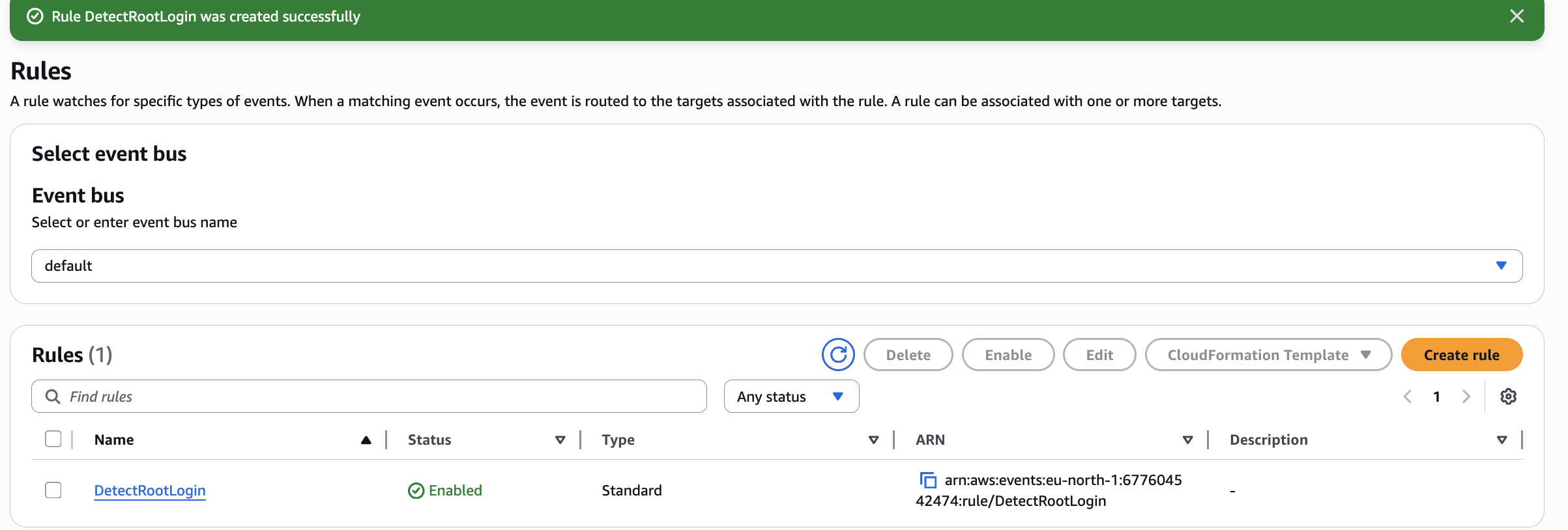
✅ Here’s What Just Happened (Step-by-Step Summary):
| ✅ Step | What You Did |
|---|---|
| 👁️ Identified Event | You filtered for Root login via cloudtrail.amazonaws.com |
| ⚙️ Created Rule | You used EventBridge Event Pattern to match login events |
| 📣 Chose SNS Target | You picked your RootLoginAlerts SNS topic to send notifications |
| 🔐 Set Permissions | EventBridge was granted permission to publish to SNS |
| 🎯 Final Result | ✅ DetectRootLogin rule now watches for Root logins and triggers alerts |
Step 5: Test the Setup
Now go back and login again as Root (without MFA).
💥 You should receive an email like:
ALERT: AWS Root Login Detected Without MFA
Take immediate action.
ALSO ->
Open CloudTrail > Event History, filter for ConsoleLogin events, and then confirm for userIdentity.type is “Root” or not
✍️ What I Did & What I Learned
✅ What I Did
-
Created a CloudTrail trail to monitor all activity.
-
Configured SNS to alert me for risky root actions.
-
Set up EventBridge rule to detect root login.
-
Tested by logging in as root and received instant email alert.
🤯 What I Learned
-
AWS doesn’t block root usage, but it expects you to monitor it.
-
CloudTrail + SNS + EventBridge is a powerful combo to detect threats in real-time.
-
Automating this alert is a basic but critical security hygiene step.
-
Even as a beginner, I felt like I was doing something real - like what pros do in production setups.
🔐 Final Reflection (For Beginners)
If you’re new to AWS security, let this sink in:
“Security isn’t always about locking everything down.
It’s about being aware, setting detection mechanisms, and responding quickly.”
You’ve just done your first real-world threat detection setup. Be proud!
And never, ever use the root account casually again. ☠️
🧾 Next Steps (Optional Ideas)
-
Set up alerts for when someone deletes CloudTrail (yes, it happens).
-
Store logs in a versioned S3 bucket to prevent tampering.
-
Use AWS Config to monitor whether MFA is enabled on root at all times.
🔐 Security Engineer Insight — “The Root Account Is the Crown Jewel. Guard It Like a Secret Weapon.”
As a security engineer, I’ve seen this - companies lock down everything except the one identity that can destroy it all: the root user.
Let’s be honest :
Most beginners don’t realize that the root account is not meant for daily use.
One misstep here isn’t a misconfiguration - it’s a full-blown breach waiting to happen.
In this project, I wanted to simulate what actually goes wrong when a root login is not being monitored - and then show you exactly how to fix it.
This wasn’t about fancy tools. It was about building the one alarm that matters most - the one that tells you:
Someone just entered the kingdom.
We leveraged CloudTrail, SNS, and EventBridge Rules to set up a low-cost, high-value root monitoring pipeline.
✅ What We Built
By the end of this project, we had a fully working detection & alerting mechanism for AWS root account usage.
Here’s a breakdown:
| Component | Description |
|---|---|
| 🛡️ CloudTrail Trail | Custom trail (RootActivityTrail) created with multi-region + global services logging |
| 🎯 Event Selector | Filtered to capture only ConsoleLogin events for Root user ARN |
| 🔁 EventBridge Rule | Custom pattern matching on root login events triggering SNS |
| 📬 SNS Notification | Root login alerts sent to email via SNS topic - tested and confirmed working |
| ⚠️ Manual Simulation | Root login simulated and CloudTrail logs + SNS alerts verified |
In short: root login now triggers an email within ~5 minutes.
This is real detection engineering on cloud - not theory, not guesswork.
🧠 What I Learned from This Project (If I Were a Beginner)
If I were a beginner learning this for the first time, here’s what I would’ve taken away:
-
CloudTrail Alone Isn’t Enough — You Need EventBridge for Real-Time Detection
Most assume CloudTrail is “security.” But unless paired with EventBridge rules and SNS, it’s just logging, not alerting. -
The Root ARN is Special — Treat It Differently in Event Patterns
Matching the exact string"arn:aws:iam::123456789012:root"is critical. Even a minor mismatch leads to no alerts. -
S3 Logging Delay is Real
Just because you don’t see the logs instantly doesn’t mean it’s broken. AWS may take a few mins to deliver events to S3. -
SNS is Simple But Powerful
Using email as the alert channel is great for MVPs. Later, you can integrate Slack, PagerDuty, or even Lambda functions for automated response. -
Security Isn’t About Blocking Only — It’s About Knowing What Just Happened
Prevention is good, but detection is your parachute when something bypasses your controls.
Root account access in AWS is like having the master key to your entire digital kingdom.
While IAM policies, S3 buckets, and EC2 permissions often grab all the attention, real breaches often begin where no one’s watching — the root user.
This project wasn’t just a technical lab - it was a wake-up call.
If you’re learning cloud security, start with visibility, especially for the identities that can destroy everything in seconds.
Monitor the root account. Alert on it. Treat it like a break-glass-only identity.
Because when it gets used, you shouldn’t be finding out days later
You should know before the attacker logs out.
Stay tuned for more Projects